Picking Tags
Three Trays: Category to Tag
The picking area organizes 5,000+ tags into three numbered trays — ① Subject → ② Category → ③ Tags. Subject holds 16 main categories (Character / Environment / Photography / Art style…); Category updates dynamically per subject (for Character: Basic / Identity / Age / Skin…); Tags render bilingually — your native language leads for easy browsing, with the English value (what actually gets output) as a secondary label.
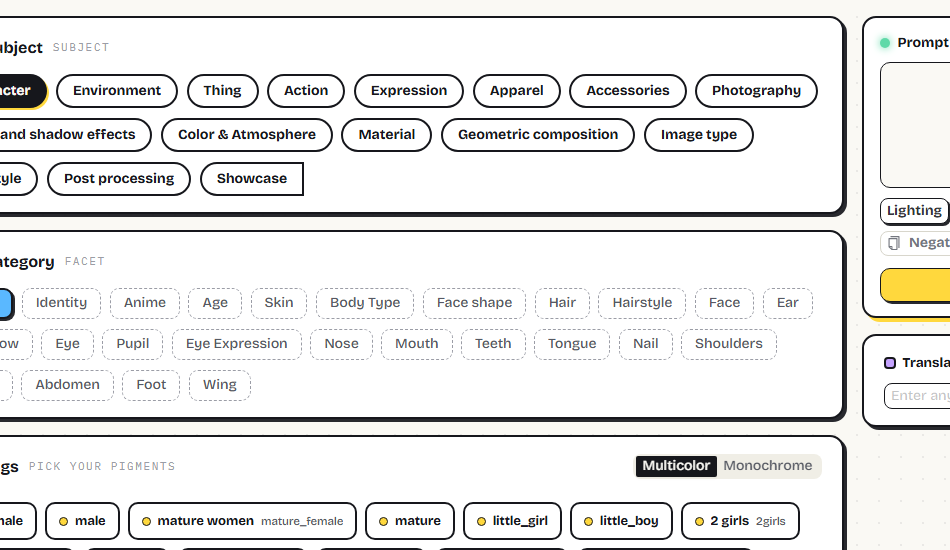
Click a tag to add it to the prompt box; click again to remove. Selected tags wear a ✓ badge, and duplicates are automatically ignored.
💡 A few entries are recipe-style aggregate tags — one tag carries a set of words that work together (common in Showcase and Action). One click adds the whole set, another click removes it whole; it never gets split apart.
Hover / Long-Press to Preview 🖼️
For tags with example images, hover on desktop or long-press ~0.5s on touch to open a preview popover (full native-language name + thumbnail + description):
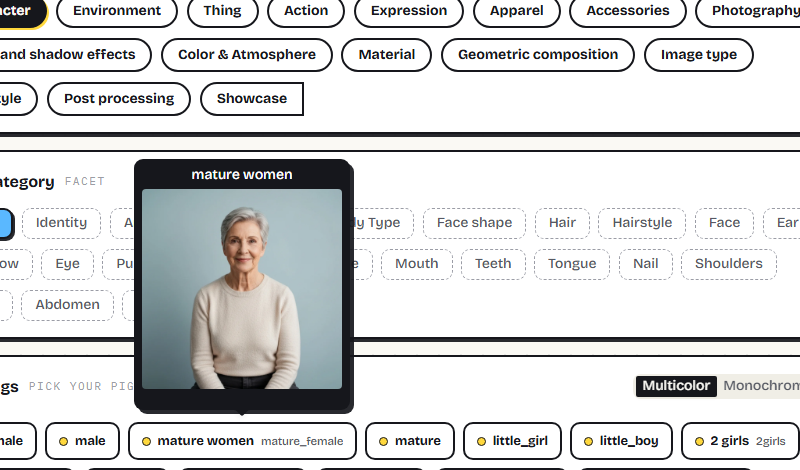
Click the thumbnail to view it full size: scroll or use the buttons to zoom, rotate, or download. Press Esc to close — your browsing position and selections stay right where you left them.
📱 On touch devices a quick tap still adds / removes the tag — only a long-press opens the preview. Tap anywhere outside the popover to dismiss it.
Multicolor vs Monochrome 🎨
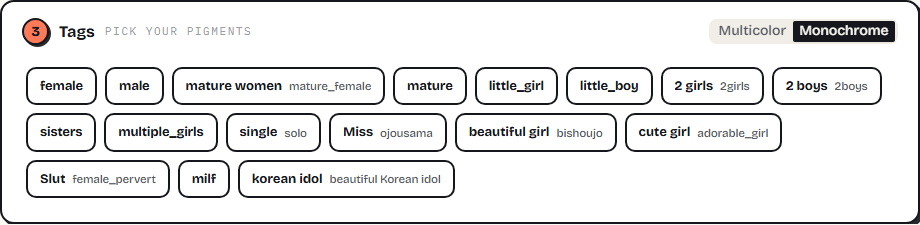
The switcher at the top-right of the Tags tray toggles two visual modes (preference saved automatically):
- Multicolor: tags carry rotating color dots and fill in like stickers when selected — great for browsing and inspiration;
- Monochrome: ink outlines and higher information density — great for fast scanning.
Share Your Current View 🔗
As you browse, the link in your address bar remembers which category you're looking at. Copy it and send it to a teammate — they'll open the exact same view. Handy for team workflows, tutorials, and bookmarking favorite starting points. Links work across languages too: swap the language in the link and it still opens the same category, and switching languages on the page keeps your place.
Dark Theme 🌓
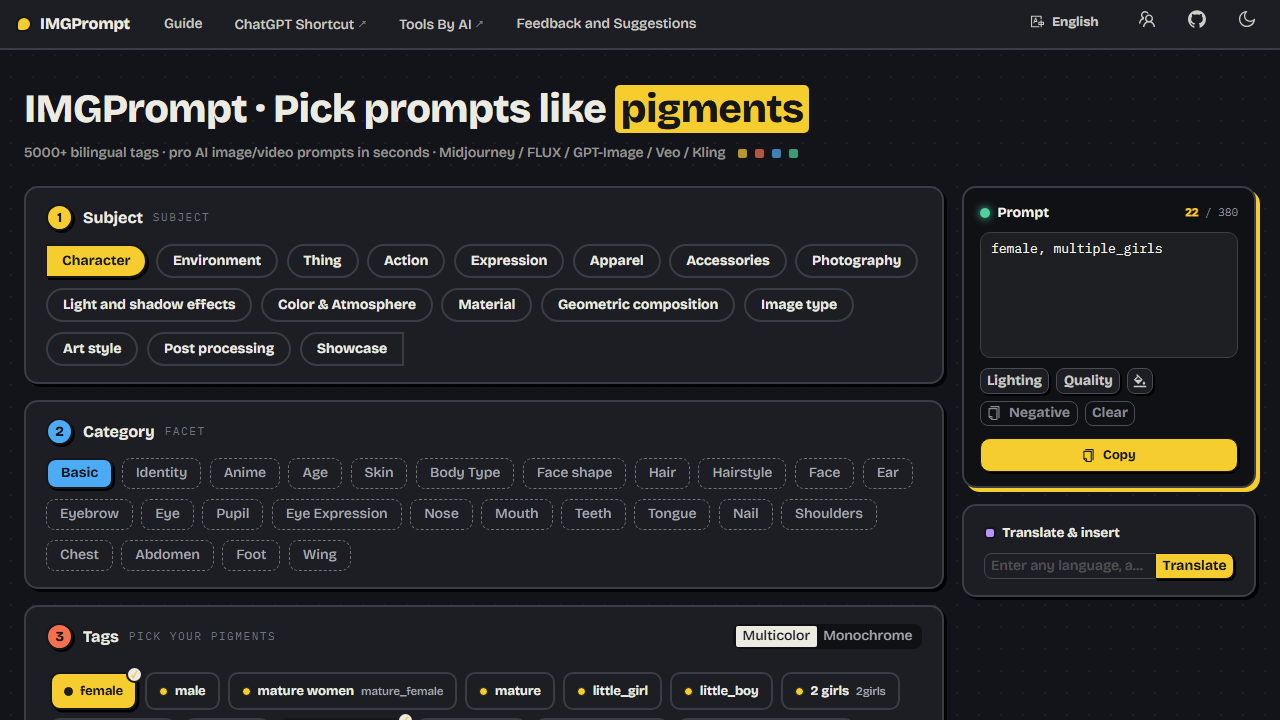
Toggle light / dark from the top navigation (follows your system by default):
Next: Editing Prompts — free-form input, smart suggestions, and translate-and-insert.